


The MacBook Touch Bar was Apple’s bold attempt to reinvent how we interact with laptops, a slim OLED strip sitting just above the keyboard, replacing the traditional function keys with a context-sensitive, touch-enabled display. For many Kiwi MacBook Pro users, it quickly became a daily tool: adjusting brightness, scrubbing through timelines, checking Siri suggestions, and adapting to whatever app was open.
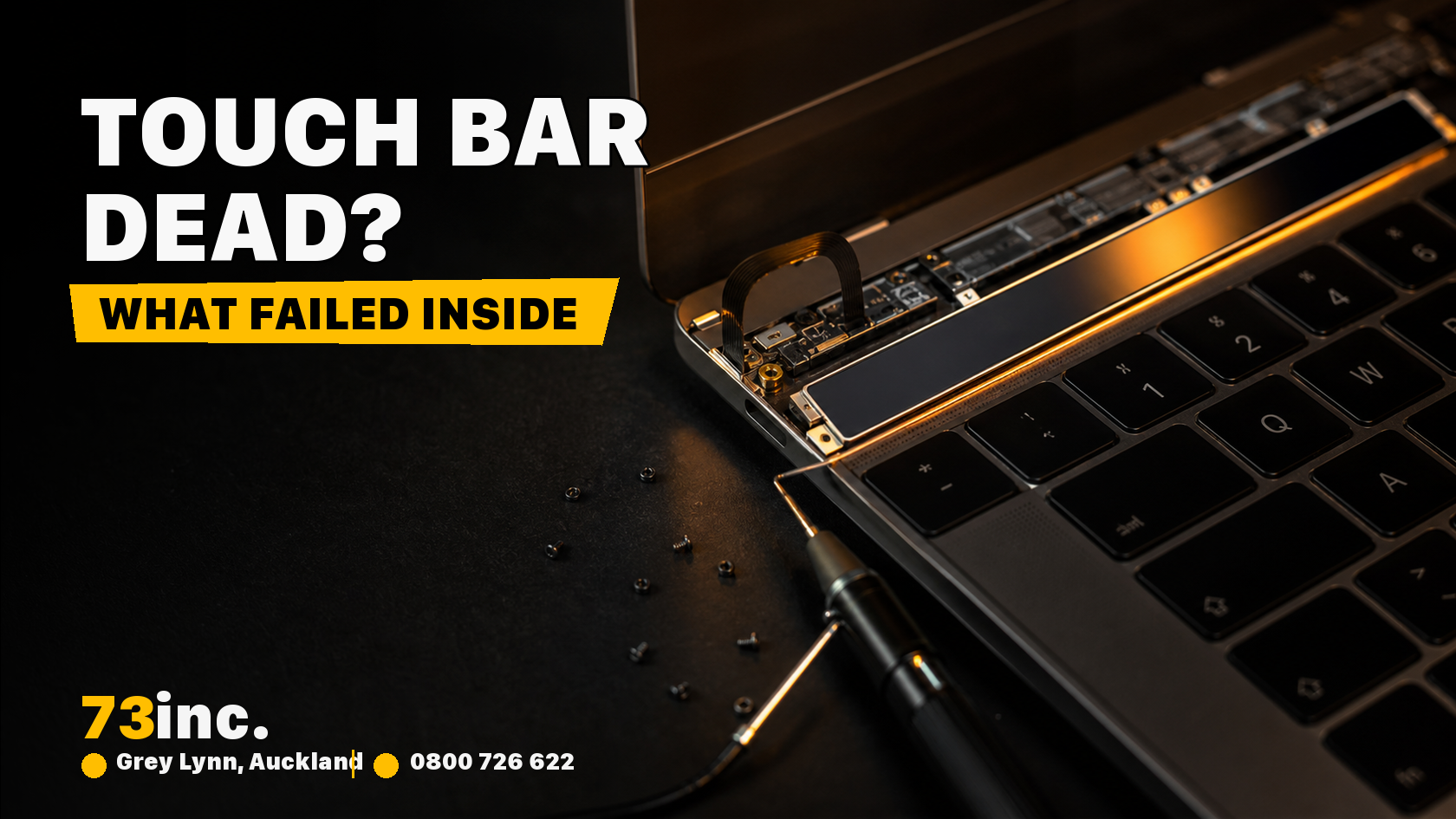
So when it stops working, it is genuinely disruptive. You might see a completely black bar, a frozen display, unresponsive touch input, or a bar that flickers on and off. The good news? Many Touch Bar problems can be solved without an expensive repair, a nd for those that can’t, we at 73inc in Auckland are here to help.
This guide walks you through every cause and fix, step by step.
1. What Is the MacBook Touch Bar, and Which Models Have It?
The Touch Bar is a narrow OLED touchscreen that replaces the function-key row on selected MacBook Pro models and shows controls relevant to the app in use. Intel Touch Bar models use Apple T1 or T2 hardware; that description does not apply to the 13-inch M1 and M2 models.
MacBook Pro models with a Touch Bar include:
• MacBook Pro 13-inch (2016–2022, specific configurations)
• MacBook Pro 15-inch (2016–2019)
• MacBook Pro 16-inch (2019)
The 14-inch and 16-inch Apple silicon MacBook Pro models introduced in 2021 use physical function keys. The 13-inch M1 (2020) and M2 (2022) MacBook Pro models retain the Touch Bar.
2. Common Touch Bar Problems: What Are You Seeing?
Touch Bar issues come in different forms. Identifying which symptom you have will help narrow down the cause:
Touch Bar is completely black / not displaying anything
The bar appears powered off or entirely dark. This can be a software crash, a T1/T2 chip issue, or a hardware failure.
Touch Bar is frozen or stuck on one display.
The bar is lit up but not updating to reflect which app you are using, or it is stuck showing one set of controls.
Touch Bar is unresponsive to touch.
The bar displays content but doesn’t respond to taps or swipes. This may be a touch sensor issue or a software glitch.
Touch Bar flickering or flashing.
The bar flickers repeatedly, turns off and on, or shows visual artefacts. Often a sign of a loose cable connection or hardware deterioration.
Touch Bar works intermittently.y
It works sometimes and not other times. This can be heat-related, software-related, or point to a failing connection inside the device.
3. Start Here: Quick Fixes to Try First
Before trying these checks, stop using or charging the MacBook if there has been liquid exposure, swelling, unusual heat or a burning smell. Disconnect external power if safe and arrange assessment. Otherwise, use only the checks appropriate to your model and save your work first.
Step 1: Save Your Work Before Restarting
The Touch Bar uses system processes whose names and behaviour vary with macOS. Save your work and use the normal restart procedure in Step 2 rather than entering an unverified Terminal command.
Step 2: Restart Your MacBook
A full system restart refreshes running processes and may clear a temporary software fault. Save your work, go to Apple menu > Restart, and wait for the machine to boot before testing the Touch Bar.
Step 3: Reset the SMC (System Management Controller)
The SMC manages low-level power and thermal functions on Intel Macs. Resetting it may help with some hardware-behaviour issues, but it does not identify the cause of a Touch Bar fault. The key sequences below are for Intel models only. Apple silicon M1 and M2 Macs do not need a manual SMC reset; restart or shut down and power on normally.
For Intel MacBook Pro models with the T2 chip only (not M1 or M2):
4. Shut down your MacBook completely
5. Hold left Control, left Option and right Shift for 7 seconds.
6. While still holding those keys, also press and hold the Power button for another 7 seconds
7. Release all keys, wait a few seconds, then turn your MacBook on normally
For MacBooks with a T1 chip (Touch Bar models from 2016–2017):
8. Shut down your MacBook
9. Hold Shift + Control + Option (left side) and the Power button for 10 seconds
10. Release all keys and power on
Step 4: Reset NVRAM/PRAM
The key sequence below applies only to Intel Macs. Apple silicon Macs do not use this manual NVRAM-reset procedure. A persistent Touch Bar fault still requires assessment; a reset does not prove its cause.
11. Shut down your MacBook
12. Turn it on and immediately hold Command + Option + P + R
13. Release the keys after about 20 seconds; the Mac may appear to restart.
14. Release the keys and let the Mac start normally
Step 5: Update macOS
Apple regularly releases bug fixes and firmware updates that address Touch Bar behaviour. Go to System Settings (or System Preferences on older macOS versions) > Software Update and install any available updates. After updating, restart and test.
Step 6: Test in Safe Mode
Safe Mode starts macOS with only essential software running. If the Touch Bar works in Safe Mode, a third-party app or extension may be causing the conflict.
15. Shut down your Mac
16. For Intel Macs: hold Shift while pressing the power button, release when you see the login window
17. For Apple Silicon Macs: hold the power button until you see startup options, select your drive and hold Shift before clicking Continue in Safe Mode
18. Test the Touch Bar
19. Restart normally and re-test. If it works normally after leaving Safe Mode, try disabling your login items one by one to find the culprit
Helpful Tip for NZ MacBook Users
If you are running an older version of macOS (e.g., Mojave or Catalina), upgrading to a more recent version like Ventura or Sonoma can resolve Touch Bar bugs that Apple has long since patched. Just make sure your MacBook model supports the upgrade first.
Related Read: MacBook Pro Touch Bar not lighting up
4. Software-Specific Fixes
Check Touch Bar Settings in System Settings
Sometimes the Touch Bar is working fine, but it has been configured in a way that doesn’t display what you expect.
20. Go to System Settings > Keyboard
21. Look for “Touch Bar shows” and check what option is selected
22. Options include App Controls, Expanded Control Strip, F1, F2, etc. Key and Quick Actions
23. Try switching between options to confirm the bar is actually displaying correctly for its current setting
Check App-Specific Touch Bar Customisation
Many apps allow you to customise the Touch Bar layout within that specific app. If the Touch Bar looks wrong only in one application (e.g., Final Cut Pro, Safari, or Word), the issue may be app-specific.
In most apps, you can go to View > Customise Touch Bar to reset it. Alternatively, try quitting and relaunching the app.
Create a New User Account
If the Touch Bar works for a new macOS user account but not your main account, the problem is specific to your user profile. This points to a corrupt preference file or conflicting settings.
To test: Go to System Settings > Users & Groups > Add Account, create a temporary user, log in, and test the Touch Bar. If it works there, the issue is isolated to your main account’s settings.
5. Liquid Damage and the Touch Bar: A Common NZ Problem
New Zealand’s climate, combined with Kiwi habits like working with a coffee or flat white nearby, means liquid spills on MacBooks are one of the issues we see at 73inc. The Touch Bar is particularly vulnerable because liquid can seep through the hinge area and affect the flex cable connecting the bar to the logic board.
If You’ve Had a Liquid Spill
Stop using or charging the MacBook after liquid exposure. Shut it down and disconnect external power if safe. Do not repeatedly test it, apply heat or assume it is safe once the outside is dry. Arrange assessment and explain whether important data is backed up.
Common signs that liquid damage has affected your Touch Bar:
• Touch Bar stopped working shortly after a spill , even if you think only a small amount of liquid got in
• The bar flickers or shows discolouration
• The keyboard or trackpad is also behaving oddly alongside the Touch Bar
• You notice a faint smell of something burning or can see corrosion near the keyboard hinge
6. Physical Damage and Hardware Failures
The Touch Bar is a delicate OLED strip connected to the logic board via a thin flex cable. Physical stress, such as dropping the MacBook, opening/closing the lid too forcefully, or placing heavy objects on the machine, can damage this cable or the bar itself.
Signs that point to physical or hardware failure:
• The bar worked perfectly until a physical impact, drop, or knock
• The bar displays correctly, but one section doesn’t respond to touch
• Part of the bar is lit, and part is dark , suggesting a partial cable failure
• The bar works only when the MacBook is in certain positions (often indicating a loose cable that connects when pressure changes)
These symptoms warrant assessment. A technician will check the Touch Bar, connections and related circuitry before recommending a repair; symptoms alone do not establish that a cable or Touch Bar assembly must be replaced.
7. Is It Worth Repairing? Honest Advice for Kiwis
This is the question most MacBook owners eventually ask. Here is a practical breakdown to help you decide:
When Repair Makes Sense
• Your MacBook is in otherwise excellent condition with a good battery, a clean screen, and fast performance
• The repair cost is significantly less than the price of a replacement MacBook
• You rely on the Touch Bar for your work (design, music production, video editing)
• Your model is still capable of running the latest macOS versions
When Replacement Might Be Worth Considering
• Your MacBook is an older Intel model that is approaching end-of-life for software support
• Multiple components are failing , not just the Touch Bar
• The repair cost approaches or exceeds 50–60% of the device’s current market value
• You’ve been considering upgrading to an Apple Silicon model anyway
Clear Repair Pricing
We explain the proposed repair options and price before you approve repair work. We do not offer a universal best-price guarantee.
8. When to See a Professional: Don’t Wait Too Long
If you have tried all the software fixes above and the Touch Bar is still not working, it is time to see a professional technician. Continuing to use the MacBook or attempting DIY repairs risks:
• Causing further damage to the flex cable or logic board
• Attempting an unsupported DIY repair can cause additional damage, complicate diagnosis and increase the eventual repair cost.
• Missing liquid damage that is quietly corroding other components
The sooner you bring the device in, the more likely it is that a straightforward repair (like reseating a cable) will fix the problem, rather than a more costly component replacement.
9. How 73Inc Can Fix Your MacBook Touch Bar in Auckland
73Inc is one of Auckland’s most experienced and trusted Apple repair centres, with over 8 years of hands-on expertise working with MacBook hhardware including Touch Bar models. Located in Grey Lynn, Auckland, our team handles everything from quick software diagnostics to complex logic board repairs.
Here is what you can expect when you bring your MacBook to 73Inc:
Thorough Diagnostic Assessment
We carry out a diagnostic assessment to identify the root cause of the Touch Bar issue, whether it is a software crash, a loose flex cable, liquid damage, or a failed component. You receive clear information about what is wrong and what the repair involves before any work begins.
Repair Timing
Turnaround depends on the exact model, diagnosis, required work and parts availability. We explain the expected timing before you approve the repair.
Quality Parts and Repair Warranty
Our standard repair warranty is three months return-to-base on applicable parts and labour, subject to the agreed repair terms. We explain the proposed parts and repair scope before you approve the work.
Honest Pricing, No Surprises
At 73Inc, we provide clear, upfront pricing before any repair begins. Repair prices depend on the device, fault and proposed work. There is no pressure to proceed; if the repair doesn’t make financial sense for your situation, we will explain the available options.
Afterpay Available
We offer Afterpay, so you can fix your MacBook now and pay it off over time, useful when an unexpected repair bill arrives at the wrong moment.
Walk-In or Mail-In Service
Based in Auckland but not in the city? We also accept courier-in repairs; send your MacBook to us for assessment, and we explain the available repair options before approved work proceeds. This makes professional repair accessible to MacBook owners across New Zealand, not just Aucklanders.
📍 Find 73Inc
55b Pollen Street, Grey Lynn, Auckland 1021 Phone: 0800 726 622 Email: info@73inc.nz Monday–Friday: 9:00 AM–5:30 PM; Saturday: 9:00 AM–5:00 PM; Sunday: Closed. Walk-ins welcome, no appointment needed. Website: 73inc.nz
10. Frequently Asked Questions
My Touch Bar worked fine this morning and stopped this afternoon. What happened?
A sudden Touch Bar fault can have several causes. Save your work and restart normally if there are no signs of liquid damage, swelling or unusual heat. Use Intel-only reset instructions only for the appropriate model. Persistent problems need assessment.
Can I use my MacBook without the Touch Bar?
Depending on the fault, the Mac may still be usable with onscreen controls or an external keyboard. Touch Bar models do not all have physical Escape, volume and brightness keys. Stop using it if there are signs of liquid exposure, swelling, unusual heat or a burning smell.
How much does a Touch Bar repair cost in New Zealand?
Repair costs vary depending on the MacBook model and the nature of the fault. A software fix may be very low cost; a Touch Bar assembly replacement is more significant. Contact 73Inc at info@73inc.nz or 0800 726 622 for a quote specific to your device and issue.
Does Apple cover Touch Bar repairs under AppleCare?
If you have an active AppleCare+ plan and the Touch Bar failed due to a manufacturing defect (not accidental damage), it is typically covered. Accidental damage claims have an excess fee. If you are out of warranty, an independent specialist like 73Inc is usually significantly cheaper than Apple’s own repair service.
Will resetting my Mac wipe my data?
The SMC reset, NVRAM reset, and Safe Mode steps described in this guide do not erase your data. A full macOS reinstall could potentially affect data, so always back up to Time Machine or an external drive before attempting any more involved steps.
Is the Touch Bar coming back in future MacBook models?
The 13-inch MacBook Pro with M1 (2020) or M2 (2022) includes a Touch Bar. The 14-inch and 16-inch Apple silicon MacBook Pro models use physical function keys. Identify your exact model before following troubleshooting instructions.
Final Thoughts
A malfunctioning Touch Bar does not by itself establish whether a repair is possible or economical. Use safe, model-appropriate checks first. If the problem persists, assessment can establish the available repair options.
73Inc has been Auckland’s trusted Apple repair specialist since 2016, with over 460 five-star Google reviews from Kiwi customers who needed exactly the kind of honest, fast, quality repair that a broken Touch Bar demands. Whether you walk in or mail your MacBook in from elsewhere in New Zealand, you are in expert hands.
Don’t let a broken Touch Bar slow you down. Call 73Inc today on 0800 726 622 or visit 73inc.nz to get your MacBook sorted.


