


If your MacBook has become slower or slightly less responsive, you are not imagining it. Despite Apple devices’ reputation for durability and extended usability, they still necessitate periodic maintenance. A clean and well-tuned MacBook looks excellent and offers several advantages: it performs better, has faster app loading times, stays cooler, and maintains better battery health.
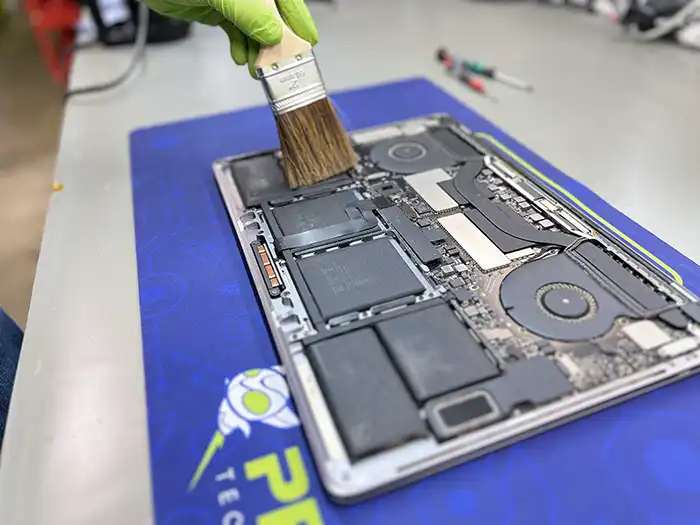
The positive side is that most of the improvements do not need any tools, technical know-how, or paid applications. Even better is that following these tune-up tips can help you delay a visit to an Apple repair in Auckland unless absolutely necessary. So what can you do now to give your MacBook a proper fresh start for 2026? Let’s go through.
Tips to Clean Your MacBook
There are several ways to clean your MacBook and keep it well-maintained. Here are a few ways:
1. Give Your MacBook a Safe, Proper Exterior Cleaning
Dirt, grime, and dust accumulate over time. Apple suggests using a soft, lint-free cloth, such as an eyeglass cleaning cloth, with 70 percent isopropyl alcohol for wiping down surfaces. Other than that, here’s what you can do:
- Ensure the MacBook is always switched off before cleaning, and avoid splashing liquid directly onto the device. The display is best cleaned using a light, circular motion to avoid creating streaks.
- For the display, it’s best to use a light, circular motion so that you don’t leave streaks.
- For the keyboard and vents, hold the MacBook at an angle and blast it with short bursts of compressed air from more than six inches away. This will reduce some of the excess dust that may be causing overheating.
2. Declutter Storage That Slows You Down
Most people are unaware that macOS requires some breathing room to function smoothly. Virtual memory, app caching, and background tasks all suffer when there is less than 10–15% free space. You can check that by clicking on Apple Menu → System Preferences → General → Storage. Here’s where macOS shows what’s filling up your space.
Large video files, old iPhone or iPad backups, downloaded DMG installers, Mail attachments, and duplicate documents usually occupy gigabytes of space. Removing just those few categories can significantly improve performance.
Quick tip: Stick with Apple’s built-in storage tools and avoid third-party “cleaning apps”. Apple has frequently warned about apps that remove system files in this manner, as they can potentially damage macOS.
3. Manage Startup Items to Reduce App Clutter
If your MacBook takes a long time to boot or feels sluggish immediately after signing in, the number of apps that are launching automatically might be the actual cause. Verify the list via System Settings → General → Login Items.
The removal of unnecessary processes allows the system to settle down faster, which decreases background RAM utilisation. Many users will immediately experience a more seamless experience after performing this cleaning.
4. Update macOS and Apps for Better Security and Stability
With every macOS release, Apple bundles performance enhancements, security updates, bug fixes, and energy-saving features. Updates can be checked for via System Settings → General → Software Update.
Are your browser, editors, or creative apps acting glitchy? You might be running outdated versions. Software updates also enhance aspects such as fan control and power distribution, which in turn improve thermal performance.
5. Strengthen Your Battery Health
Apple designs its own batteries to maintain up to 80 percent capacity at 1000 charge cycles, and you can check your battery health under System Settings → Battery → Battery Health.
Another option is to enable Optimised Battery Charging, which slows down the charging process when the battery reaches approximately 100% charge. You also don’t want to keep your MacBook constantly plugged in at 100 percent all day, as this can shorten its battery life. The long-term range should typically be from around 20 to 80 percent.
Either way, if your battery is dying much quicker than usual, even with light use, it may be worth running Apple Diagnostics (restart and hold the D key). Or, you may need to take your device to an Apple repair centre in Auckland.
6. Clean Browser Data for Faster Everyday Performance
Over time, your web browser accumulates cache, cookies, and site data. Although this allows for quicker loading times at first, too many accumulations lead to slower browsing down the road, as more RAM is consumed. Therefore, you should clean data at least once a month to maintain responsiveness.
For Safari users, go to Settings → Privacy → Manage Website Data. In Chrome or Firefox, the option can be found under Privacy and Security → Clear Browsing Data. This one change has a pretty significant effect on daily speed.
Final Words
No matter how carefully you tune your devices, there are MacBook problems, such as sudden battery drain or an unresponsive trackpad, that are beyond what you can solve at home. And if all of this is already apparent, it is best to fix it. Therefore, a proper diagnosis can be the wisest move.
If you’re looking for a reliable partner that deals with these matters, 73Inc is one of the most reputable names you can turn to. As Apple repair specialists in Auckland with over 8 years of experience, we offer a 90-day warranty, competitive pricing that is lower than our potential competitors charge, and consistently provide high-quality products.