



To check storage on a recent MacBook, open System Settings > General > Storage. The useful distinction is between the drive’s total capacity and the space still available for your files and apps.
An external drive or cloud plan can help you manage files, but neither increases the capacity of the SSD inside your Mac. Start by checking what you have before deleting files or considering an upgrade.
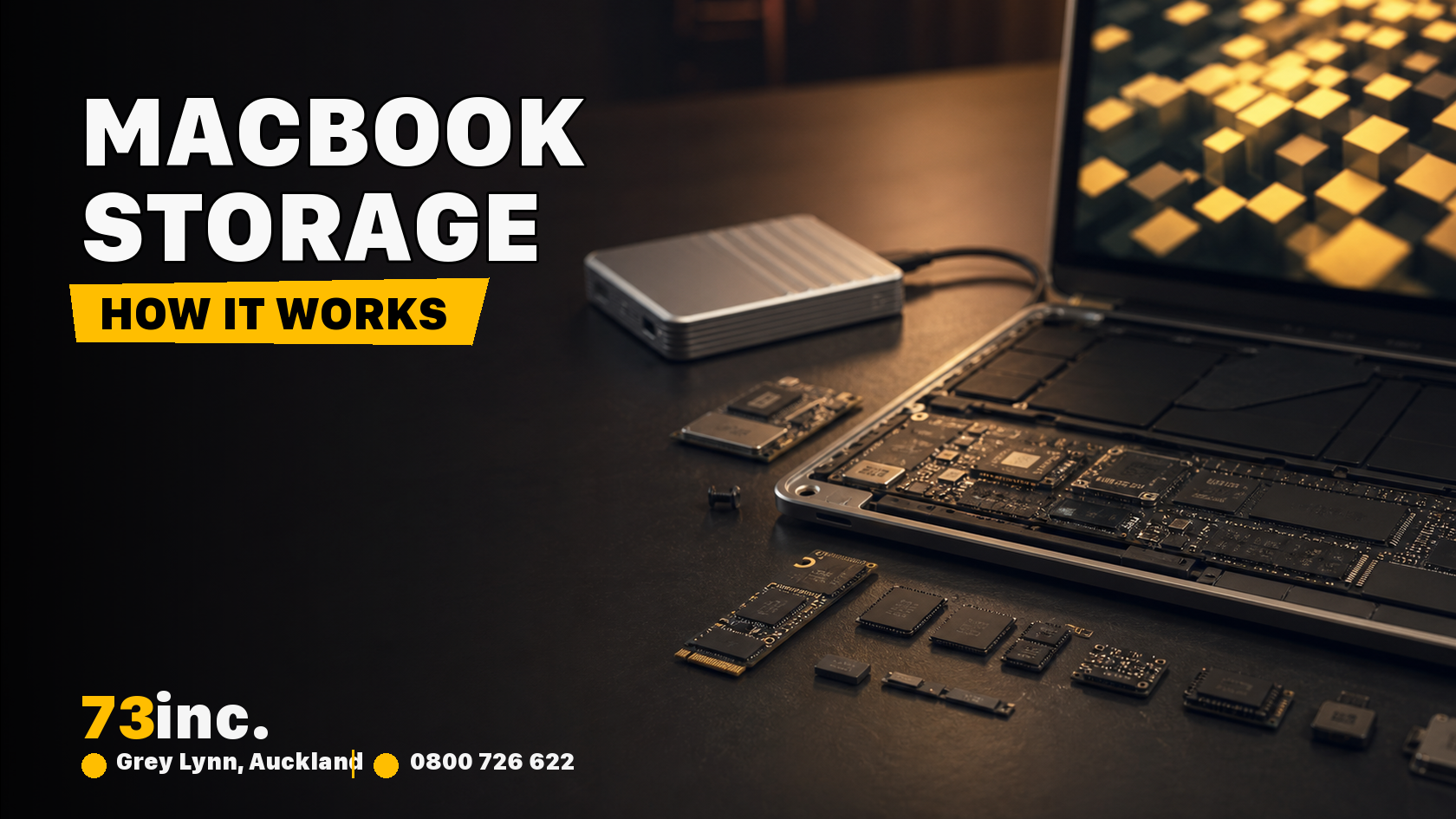
Understanding Mac Storage
Mac storage refers to the drive where macOS, apps and files are stored between sessions. A hard drive refers to a physical storage device, while disk space is the storage capacity of that device. Your disk space is generally measured in bytes such as kilobytes, megabytes, gigabytes, terabytes, and so on.
It helps to distinguish internal storage, external storage and cloud storage.
Primary (internal) storage: For macOS, apps, and user data. Examples: internal hard drives (HDD) and solid-state drives (SSD).
External storage: A separate drive or USB device can hold files or backups. Moving a file there does not increase the capacity of the internal SSD.
Cloud storage: iCloud Drive and similar services store and synchronise files online. Local copies can still use space on your Mac, and synchronised deletion can affect other devices. Keep a separate backup of important files.
By moving files to external storage, you can free internal space after checking the copy and keeping a backup. A file held only on one external drive still has no second copy.
Understanding Mac Storage Usage
Mac storage generally contains the following categories:
Apps: All built-in and downloaded apps, plugins, and extensions.
Audio: All music and audio files
Photos: All images that are saved locally, imported from a camera or iPhone, or created from third-party apps.
System Data: macOS groups various support files here. Do not delete files from System or Library folders simply because this category looks large.
Other: Depending on your macOS version, this can include files that do not fit the named categories. It does not mean those files are disposable.
Free space: The available space for new files and apps.
How to check storage on Mac
Use the method that matches your macOS version. Finder and Disk Utility also provide drive information.
Method 1: Via the Finder
- Open Finder.
- If your startup disk is not shown, use Finder settings to show hard disks in the sidebar.
- Select the startup disk (often Macintosh HD) and press Command + I.
- Read capacity and available space in Get Info.
Method 2: Via About This Mac
- On older macOS versions, choose Apple menu > About This Mac > Storage.
- On macOS Ventura 13 or later, use System Settings > General > Storage instead.
Method 3: Via Disk Utility
- Open Finder and go to Applications.
- Now, click on Utilities > Disk Utility.
- Click Macintosh HD, and you’ll see available and used storage.
Method 4: Via System Settings
- Open the Apple menu.
- Choose System Settings.
- Click General > Storage.
SSD vs HDD on Mac
An HDD (Hard Disk Drive) is a form of non-volatile storage used in older computers. Physically, it consists of metal platters with a magnetic coating. These platters spin at high speeds, and a tiny actuator arm hovers above it, reading or writing data. SSD (Solid-State Drive) performs the same function differently. Instead of spinning disks and moving parts, SSDs store data on flash memory.
SSDs have no moving parts, which changes how they handle shocks, noise and everyday file access. Neither type of drive is a substitute for a backup.
| Feature | SSDs | HDDs |
|---|---|---|
| Speed | Usually faster file access | Mechanical movement limits access speed |
| Durability | No moving parts; still vulnerable to damage and failure | Moving parts can be damaged by shocks |
| Storage capacity | Capacity and price vary by model | Often lower cost per unit of capacity |
| Noise | Silent operation | Noisy due to moving parts |
| Power consumption | Lower | Higher |
| Common use | Internal storage and fast external drives | Bulk external storage and backups |
How much storage do I need on my Mac?
Look at the files you keep locally and the space your work needs. Large photo libraries, video projects and installed games can change the calculation more than documents and web browsing.
Allow room for new files and working space as well as what is already stored. A drive that just fits today’s files may leave little room for an update or a large project.
System Data can occupy substantial space, including caches and local snapshots. Use the storage overview to identify your own large files first; do not assume every item in System Data should be removed.
Choose capacity around your existing files, working space and likely growth. Factory storage options vary by model. An advertised 8TB configuration is not evidence that your current MacBook can be upgraded to it. Many recent MacBooks do not have a user-replaceable internal SSD. Check the exact model before considering Mac storage upgrade options; external storage may be the practical alternative.
Free space without deleting something you need
- Uninstall unused apps using the developer’s instructions.
- Review Downloads, large personal files and old device backups before deleting anything.
- Empty Trash only after checking its contents and your backup.
- Use the Photos app’s own duplicate-review tools where available.
- Review unwanted Mail messages within Mail.
- Compress files you need to keep, or move them to a backed-up external drive.
- Keep compatible macOS updates current. Avoid blanket cache or system-file deletion.
For the current controls, see Apple’s storage guidance.


